How To Gain A Top Twenty Position!
Written by Atomic Newsroom on 3 January 2026
Background:
Securing a chart position is a project-validating milestone that comes with National Radio airplay and PR support.
While uploading your music makes you eligible for the Top Twenty, the chart positions are earned, not bought or curated by gatekeepers. The system relies on hard data – specifically the volume and velocity of Likes, Streams, Ratings and Tips – to determine rankings.
Therefore, gaining a Top Twenty position requires more than just a great song; it requires “Self-Propelled Promotion.” This tutorial outlines how to use Atomic’s App features to drive the engagement metrics necessary to force our algorithm – and our A&R team – to take notice.
1. Publish A Press Post
Prerequisite: Ensure you have signed up for an artist account and submitted music.
Navigate to your Artist Profile and click on the ‘Press’ section. This section displays a feed of all your Press Posts.
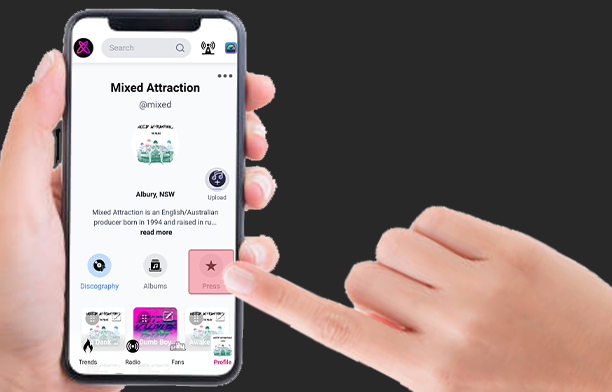
Why is this section valuable?
- For Exposure: Your posts appear in the global App Feed, giving you immediate visibility to all listeners on the platform – not just those who already follow you.
- For Fans: It provides context. Listeners form deeper emotional connections when they know the story behind the song, leading to higher conversion rates from “Listener” to “Super Fan.”
- For A&R: It serves as a signal of professionalism. An active Press feed demonstrates to our internal team that you are a serious artist capable of marketing yourself.
- For The Algorithm: Press Posts are the content vehicles you will use to drive traffic to your profile.
How to create a Press Post:
Step 1. Navigate to the Label Services Page (via the link)
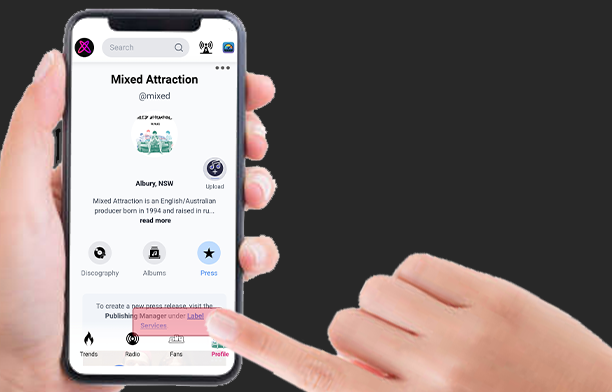
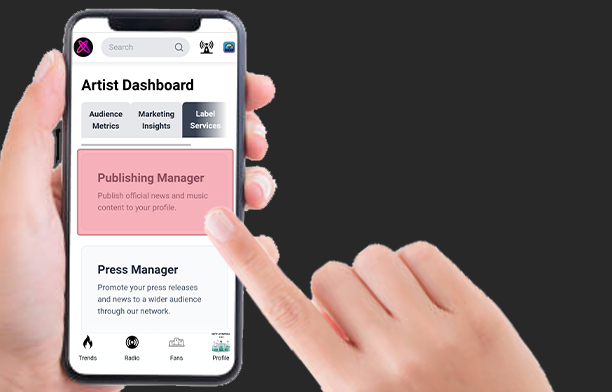
Step 2. Open the Publishing Manager
Step 3. Select “Configure & Publish” from the ‘Create Press Release’ option
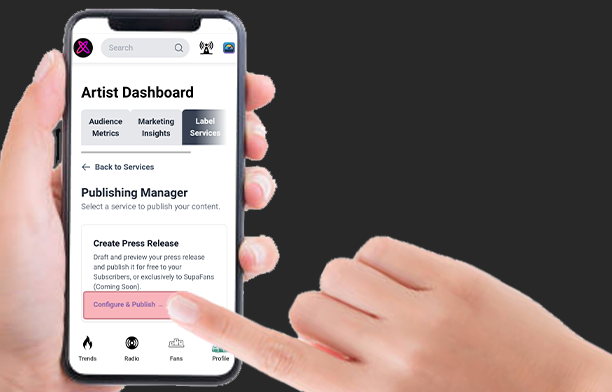
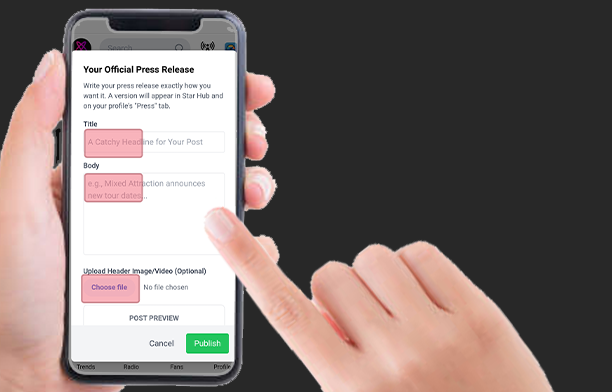
4. Write a catchy headline/story and upload your media (image/video).
Step 5. Decide on a goal for your Press Post
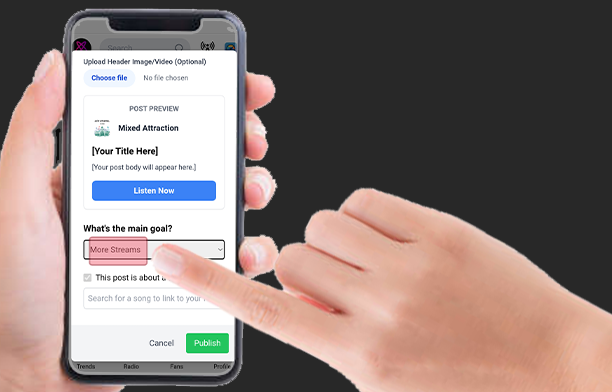
Pro Tip: For most new releases, selecting “More streams” is ideal to drive chart position. However, for creative campaigns, you might select “More tips” and conduct a giveaway by choosing a winner from your list of tipping fans.
Step 6. Select your goal from the drop-down list.
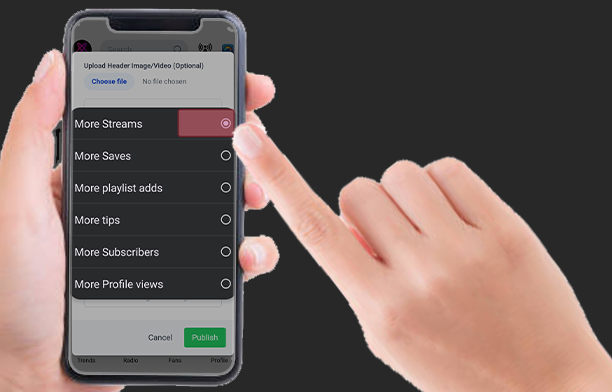
This will generate a specific ‘Call-To-Action’ button on your Press Post.
Step 7. Link Your Music & Publish
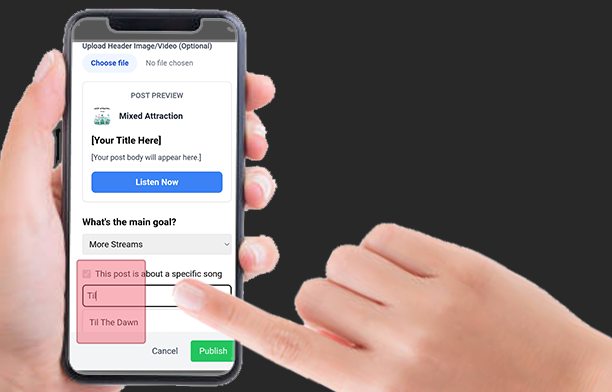
Search for your song by typing in the search bar.
1. Type the name of your track in the Search Bar to find your song.
2. Select the song to attach it to the post.
Why do this? Linking a song creates a direct Call-To-Action (CTA) within the post. Readers can transition instantly from reading your story to streaming, tipping, or saving your track. These actions are the fuel for chart positioning.
If your Press Release is general news and you do not want to link a specific song-based Call-To-Action (i.e. streams, saves, tips, or playlist adds), simply untick the checkbox.
Tap ‘Publish’ to submit your Press Post.
2. Create & Share Press URL Links
Once published, your Press Post will appear in the main Feed for all App listeners. However, relying solely on the feed is passive. To chart, you need to be active.
The most effective way to drive support is to direct fans and friends who know you personally to your post.
How to share a specific Press Post:
Step 1. Select the Press Tab on your Profile Page
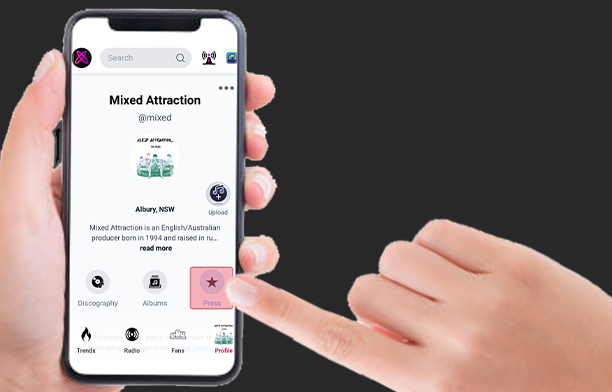
Step 2. Scroll down to find the specific Press Post
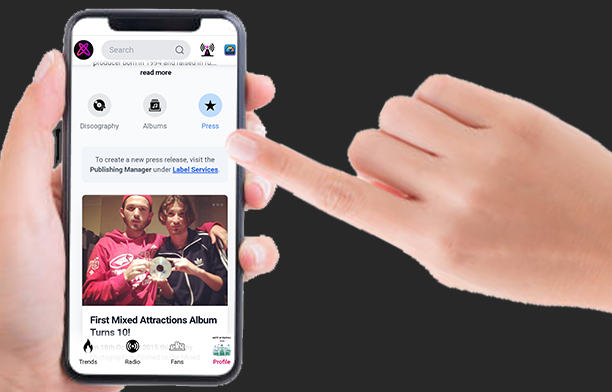
Step 3. Open the Press Post by tapping on it
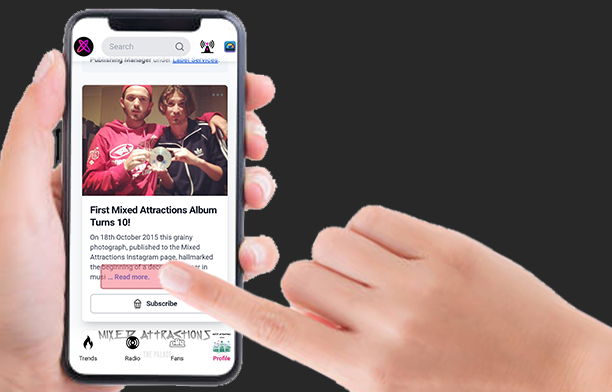
Step 4. Tap the URL / Address bar at the top of your browser
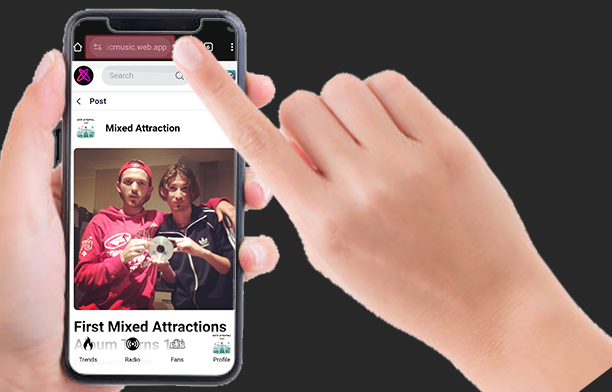
Step 5. Copy the URL
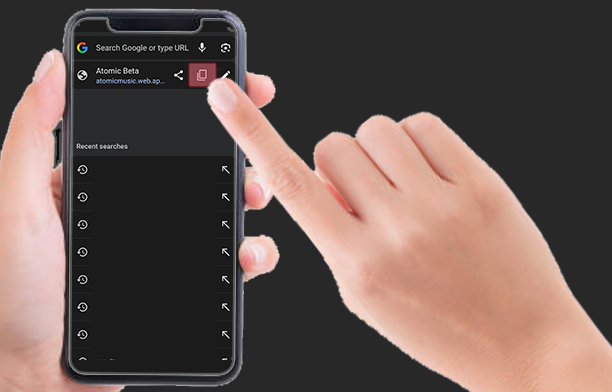
Step 6. Paste the URL into Social Media posts, Messenger, WhatsApp, or Instagram Direct Message
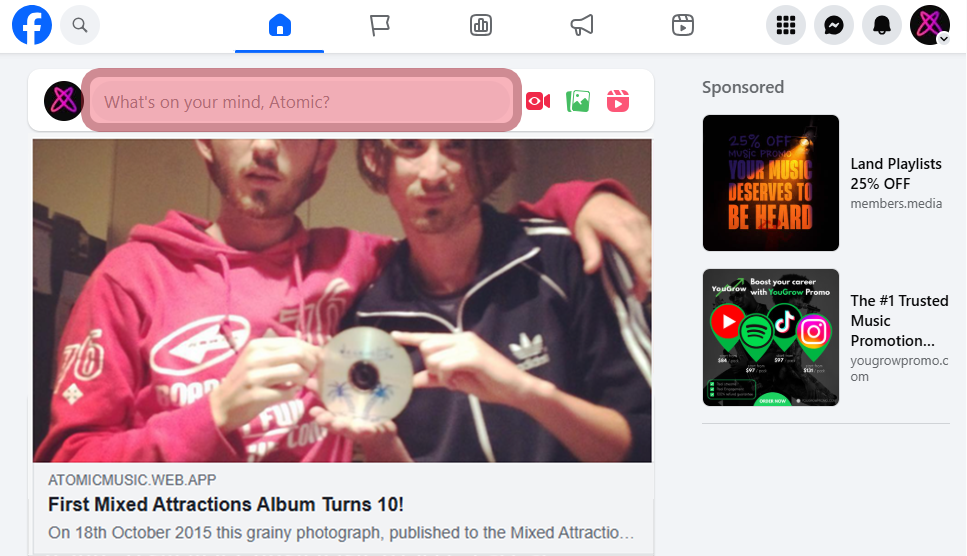
Pro Tip: While sharing links on your social media timeline (Instagram/Facebook/X) is good for broad awareness, Direct Messaging (DM) yields significantly higher conversion rates. Sending a personal message to friends asking them to “read and rate” creates a personal connection that algorithms can’t ignore.
3. Create & Share Song URL Links
Sometimes you want to bypass the story and send listeners straight to the music.
Important Strategy Note: We recommend promoting one song at a time. Focus on driving metrics to a single track. This concentrates your data (streams/tips) into one high-scoring entry, giving you the best chance of a high chart position, rather than diluting your fans’ attention across multiple low-charting tracks.
How to share a Song URL:
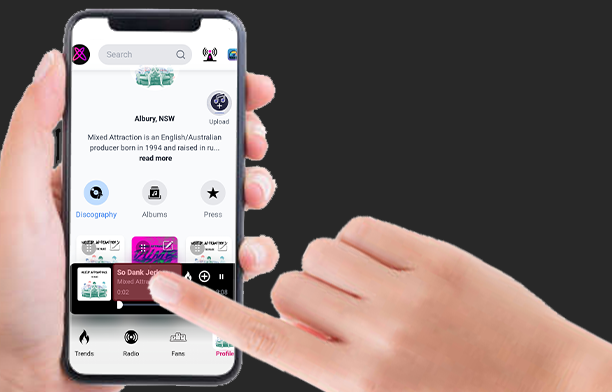
Step 1. Select the Discography Tab on your Profile Page
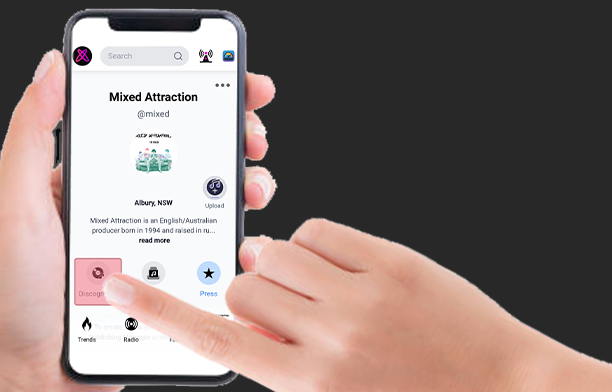
Step 2. Tap on the Song Tile of the single you want to share
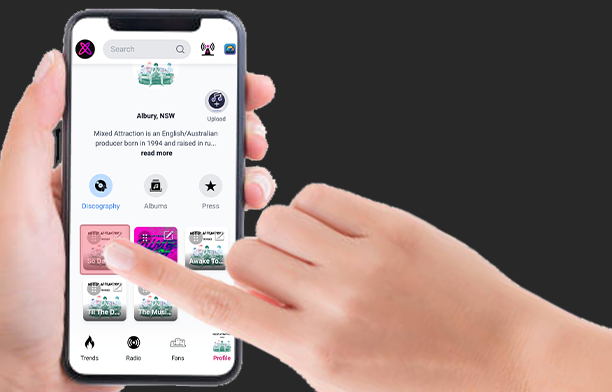
Step 3. Tap on the Mini Player to open the full Music Player
Step 4. Tap the URL / Address bar at the top of your browser
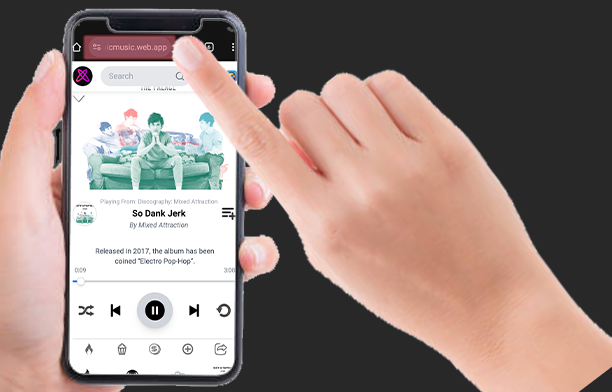
Step 5. Copy the URL
Step 6. Paste the URL into Social Media posts, Messenger, WhatsApp, or Instagram Direct Message
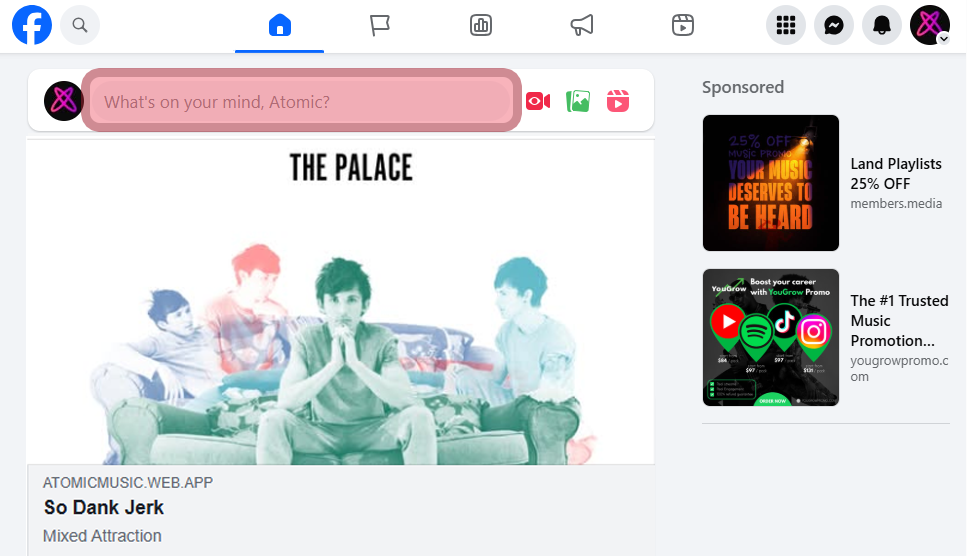
Note: Direct Song URLs are perfect for “Link in Bio” features on Instagram or TikTok when you are promoting a specific single release.